Draw a reaction scheme
Draw reactants and products, add reagents and conditions, arrange a scheme, and save or export it from Stereochem.
The Reactions workspace lets you build a scheme from molecular structures, place reactants and products, annotate the arrow, and export a shareable image.
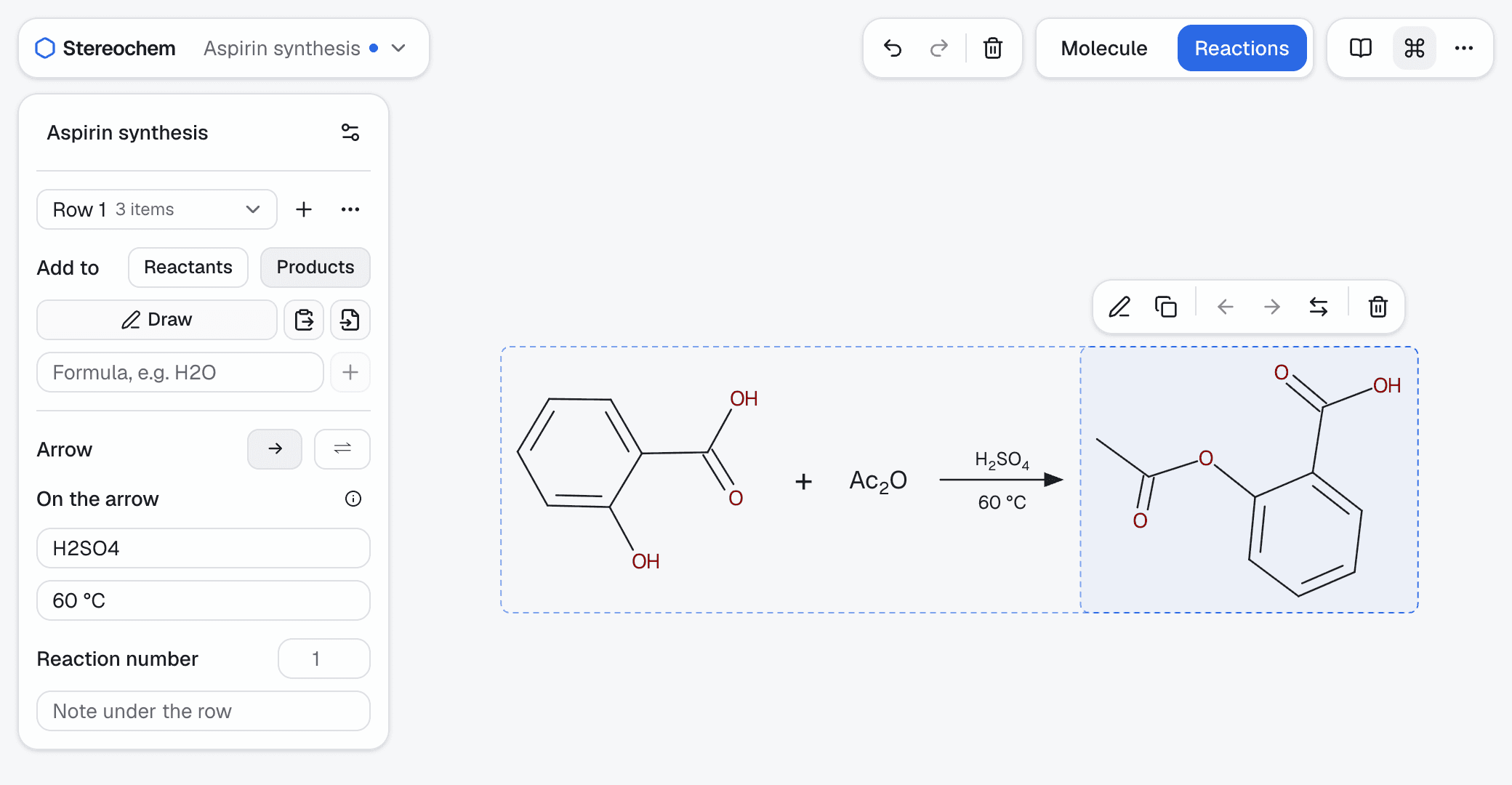
Start a reaction sheet
- Open the Reactions workspace.
- Next to Add to in the panel, choose Reactants or Products to say which side of the arrow new items join.
- Choose Draw to sketch a molecule, Add current molecule (the clipboard button) to copy the structure in the Molecule workspace, or Import file… (the file button) to read a structure file (MOL, SDF, CML, CJSON, PDB, XYZ, SMILES and the other formats the Molecule workspace opens). You can also paste a structure or drop a file onto the sheet to add it as a reactant.
- Type a formula such as
H2OorHClin the formula box and press Enter to add it as text. Digits after letters become subscripts and a trailing+or-becomes a charge; write^for a charge with a number, as inSO4^2-. - Select a molecule on the sheet and a toolbar appears above it. Use Duplicate as product there to start from an independent copy.
- Select a molecule and choose Edit structure (or double-click it, or press Enter) to change its atoms and bonds. Applying an edit returns you to the reaction sheet. To change a formula, select it and edit the text in the toolbar above it.
Structures from 3D files are flattened to 2D and scaled to the same bond length as the ones you draw, so every molecule on the sheet matches. Files with more than 400 atoms are too large for a scheme and are refused.
Arrange and annotate
The arrow buttons in the selected item's toolbar move it earlier or later along its side of the arrow, or across to the other side ([ and ] also move it). To make a multi-step scheme, choose + next to the row menu in the panel. Pick a row from the menu to add to it or edit its conditions. The ⋯ menu next to it has Move row up, Move row down, Align row (to space the molecules) and Delete row; deleting a row also removes its molecules. Rows are spaced automatically so their structures, conditions and notes stay separate.
For the selected row you can:
- choose a forward arrow (→) or an equilibrium arrow (⇌);
- write reagents and conditions above the arrow and below the arrow, set like formulas (
H2SO4,H3O+; the ⓘ button explains how); - give the row a reaction number, shown to its left;
- add a note under the row.
The display options button beside the sheet name holds the settings for the whole sheet. Label every carbon draws CH₃ and CH₂ labels instead of bare skeletal vertices. It is on for new sheets, applies to the whole sheet, and you can turn it off for a skeletal drawing. Sheets saved before this default changed open as they were saved.
Under Abbreviate groups, choose which common substituents to draw as text labels instead of their atoms: Me, Et, nPr, iPr, nBu, tBu, Ph, Bn, Ac, Bz, Boc, Cbz, Ms, Ts, TMS, TBS, OMe, OEt, OAc, OBn, OTs, SMe, NMe₂, NHAc, NHBoc, NO₂, CN, CF₃, CHO, CO₂H, CO₂Me and CO₂Et. Pick the ones you want, or All. A group is only collapsed when it hangs off the rest of the molecule by a single bond, so rings and fused systems are never split. Where two names fit, the larger group wins (OMe rather than Me), and a molecule is never reduced to labels alone. The atoms are still there: Edit structure shows the full molecule, and turning a group off draws it out again.
Click the sheet name at the top of the panel to rename it; the name becomes the file name when you save. Delete in the selected item's toolbar removes it, and undo and redo in the top bar cover every change to the sheet.
Draw a mechanism
Use electron-pushing arrows to show how electrons move in a reaction step.
- In the panel, next to Tool, choose the Electron arrow tool (or press
E). PressVto go back to the Select tool. - Choose 2e⁻ for a full arrowhead, or 1e⁻ for a half-headed fishhook arrow used in radical steps.
- Press on the atom or bond where the electrons start, drag to the atom or bond where they go, and release. Atoms and bonds highlight as you move over them, and a dashed preview follows the pointer.
An arrow can go from one molecule to another, for example from HO⁻ to CH₃Br. Arrows stay attached to their atoms and bonds, so they move with the molecule when you drag it. Arrows are part of the sheet: they are saved in the .reaction.json file and included in PNG and SVG exports.
Click an arrow to select it. A handle appears at its middle; drag the handle to change how far the arrow bows. The toolbar above the arrow has Flip side (F), a button that switches between 1e⁻ and 2e⁻, and Delete. Undo and redo cover every arrow change.
Editing a molecule's structure removes the arrows on it, because an edit can renumber its atoms. Stereochem tells you how many it removed, and undo brings them back. Deleting a molecule or a row removes the arrows on it too.
Lone pairs and charges
Stereochem works out the lone pairs of each atom from the formal charge you set and its bonds: the valence electrons of the element, minus the formal charge, minus the bond orders (hydrogens included). Change an atom's charge in the structure editor and its dots change with it. Stereochem does not guess charges from the structure, so an oxygen with one bond and no hydrogen is O⁻ only if you set the charge to −1.
In the panel, under Lone pairs, choose:
- Off to draw none.
- Mechanism to draw them on charged atoms and on atoms that an arrow starts or ends on.
- All to draw them on every heteroatom and on charged carbons.
The first lone pair of an atom that an arrow starts on faces the side the arrow curves toward, and the arrow starts at that pair.
Under Charges, just below, choose Circled (⊕ and ⊖), Plain (a superscript + or −) or Hidden. New sheets use circled charges and the Mechanism setting. Sheets saved before these settings existed open with plain charges and no lone pairs, so they look as they did.
Mechanism check
Electrons flow from electron-rich atoms to electron-poor ones. If an arrow starts on an atom that has no lone pair to give, such as a carbocation, Stereochem draws it dashed in amber on screen and lists the problem in the panel, for example "C⁺ has no lone pair to give. Start the arrow at a lone pair or a bond." Click the message to select the arrow. A fishhook arrow may start on a radical. The amber colour and dashes are not in exported images, and the check does not judge whether the rest of the mechanism is correct.
Save or export
Choose Save reaction from the document menu to download Stereochem's editable reaction sheet, a .reaction.json file. Open it later with Open reaction…, or drop it onto the sheet, to continue editing. A dot beside the sheet name shows changes that aren't saved. Starting a New reaction or opening another file asks whether to save first, and closing the page warns you while changes are unsaved.
Choose Export image… to create a PNG or SVG for a report or presentation. The image always contains the whole sheet, whatever part is on screen. You can choose the background, margin and, for PNG, the resolution.
The editable reaction sheet is Stereochem's own format. Use PNG or SVG when you need a broadly shareable picture of the scheme. Stereochem draws the scheme you build; it doesn't check that the chemistry is correct or balanced, apart from the arrow check described in Draw a mechanism.
Prepare the molecules first
You can prepare a molecule in the Molecule workspace before copying it into a reaction. See Draw and edit molecules for 2D drawing and file import. If your structure starts as line notation, read Build a 3D molecule from SMILES.
Build a 3D molecule from SMILES
Paste a SMILES string into Stereochem to build, inspect, and export a 3D molecular structure, and learn what to verify in the result.
Import and export molecular files
Use SMILES, MOL, SDF, XYZ, PDB, CML, and Chemical JSON with Stereochem, or export molecular drawings as PNG and SVG.