Draw and edit molecules
Use Stereochem to sketch molecular structures in 2D, inspect them in 3D, import chemical files, optimize geometry, and export your work.
Open the Molecule workspace. Use 2D for a skeletal drawing and 3D to inspect spatial geometry. The empty canvas also offers a caffeine sample, import, and PubChem lookup.
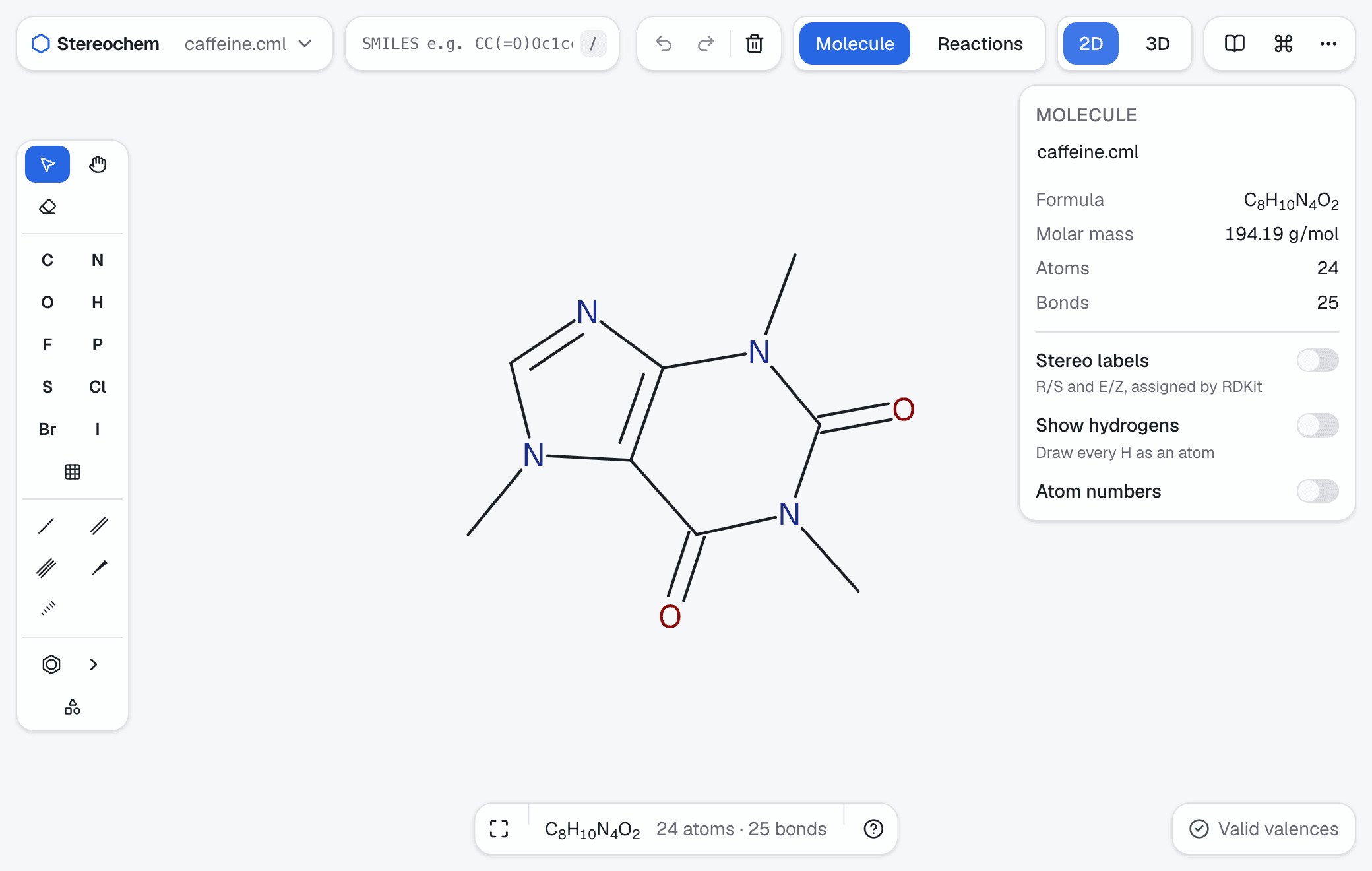
Draw a 2D structure
- Switch to 2D and pick an element such as C, N, or O from the left toolbar. For any other element, press T or click the periodic table button, then type its symbol: T N A picks sodium at once. When a symbol could go on, as K could become Kr, press Enter to pick it. Arrow keys also move around the table, and K on its own draws potassium.
- Click the canvas to place an atom. Use the bond tools to connect atoms and choose a bond order or a stereochemical wedge or hash where needed.
- Choose the ring tool to place a common ring; the Ring library next to it searches the other templates. Select atoms and bonds to move or edit them.
- Use the eraser to remove an atom or bond. Undo and redo are in the top bar.
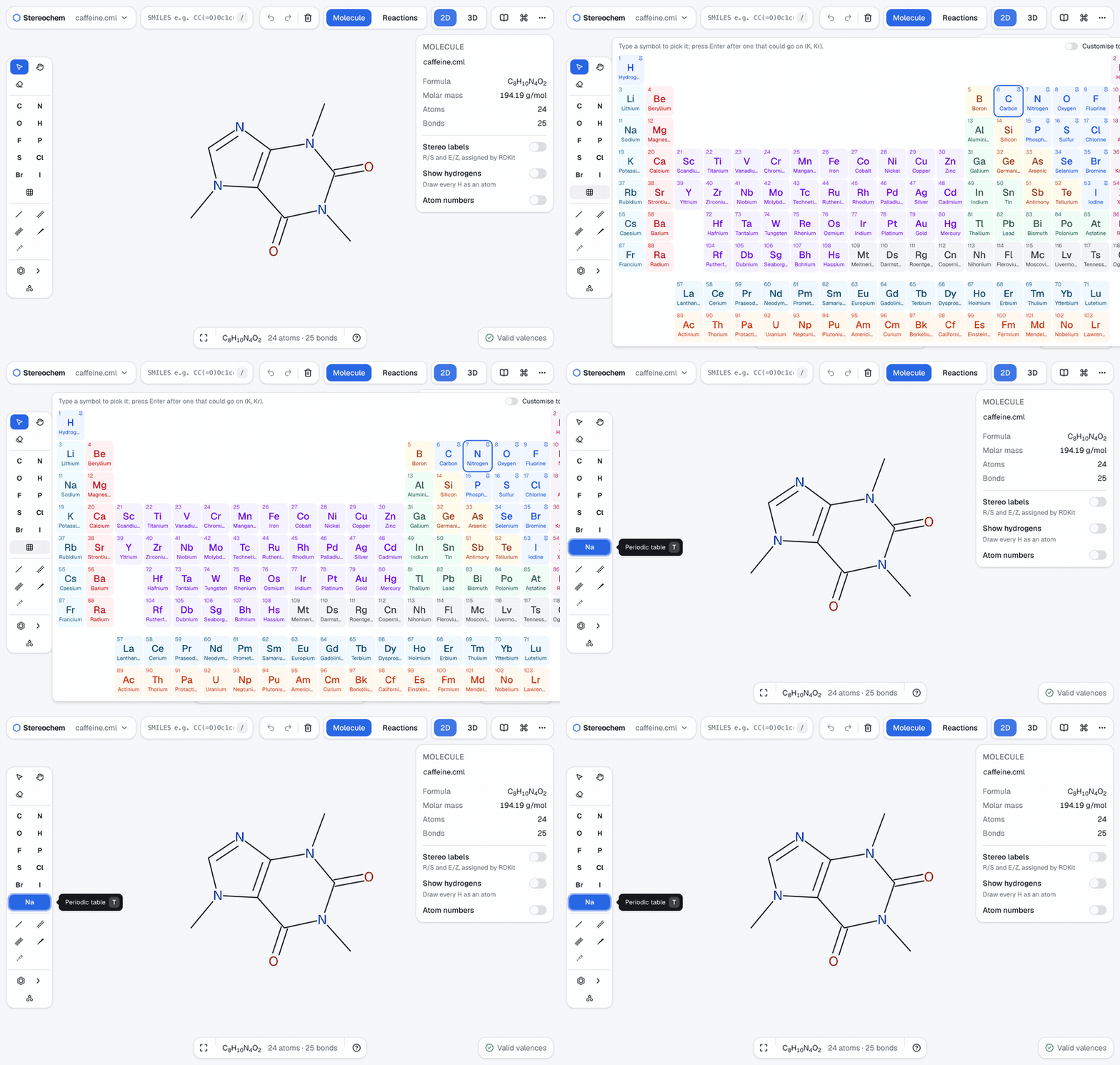
To change which elements the toolbar shows, turn on Customise toolbar in the periodic table, then click elements to pin or unpin them. You can pin up to 12, and Reset restores the defaults. Right-click a toolbar element to move it up or down or unpin it. The Inspector's element picker and the canvas menu use the same list, and it is kept in this browser. Letter shortcuts such as C and N still work whether or not an element is pinned.
For repeat work, choose Save selection as fragment… and place it again from Fragments in the 2D toolbar. Saved fragments are kept in this browser.
Inspect a molecule
The inspector on the right shows the formula, molar mass, and details of the selected atom or bond. Its display switches turn on Stereo labels (R/S and E/Z, assigned by RDKit), and in 2D, Show hydrogens and Atom numbers.
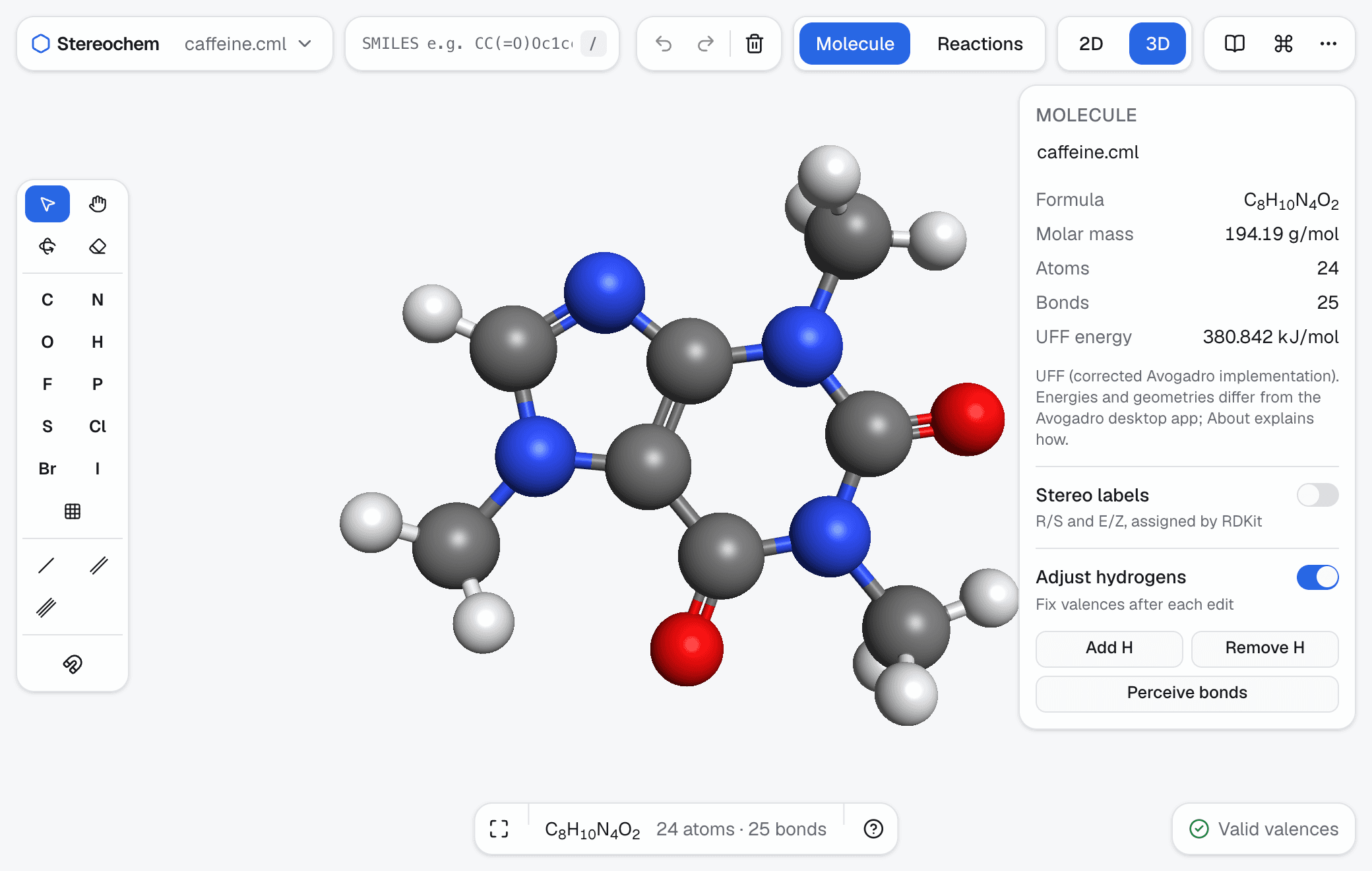
Switch to 3D to rotate the structure. A changed 2D sketch is built into 3D when you switch views. In 3D you can add or remove hydrogens, see bond lengths and angles, and read the UFF energy.
Use Optimize geometry to relax a supported structure with Stereochem's corrected Universal Force Field implementation. Optimization can fail when the force field cannot type a structure. A computed 3D model is a starting point for inspection; verify important stereochemistry and geometry before relying on it in research or publication.
Import, paste, or fetch a structure
Choose Import to select a file or paste chemical text. Stereochem recognizes common pasted formats such as SMILES, MOL, SDF, XYZ, PDB, CML, and Chemical JSON. If automatic detection fails, choose the format manually. You can also drop a supported file onto the editor.
The SMILES box builds a 3D structure from a single line. For a named compound, Fetch from PubChem loads its 3D record when one is available; otherwise it can load a 2D depiction. That lookup sends the compound name to NCBI PubChem and requires a network connection. See Build from SMILES and File formats for details.
Save a molecule or export an image
In the document menu, Save as writes the current chemical format (CJSON to begin with), and Export… lets you choose another available format. Choose Export image… for PNG or SVG output of the current view. Image export offers background, crop, and PNG resolution options.
Recently opened structures are stored in this browser, and you can reopen them from Open recent in the document menu. Download a file when you need a copy outside this browser.
Find a command
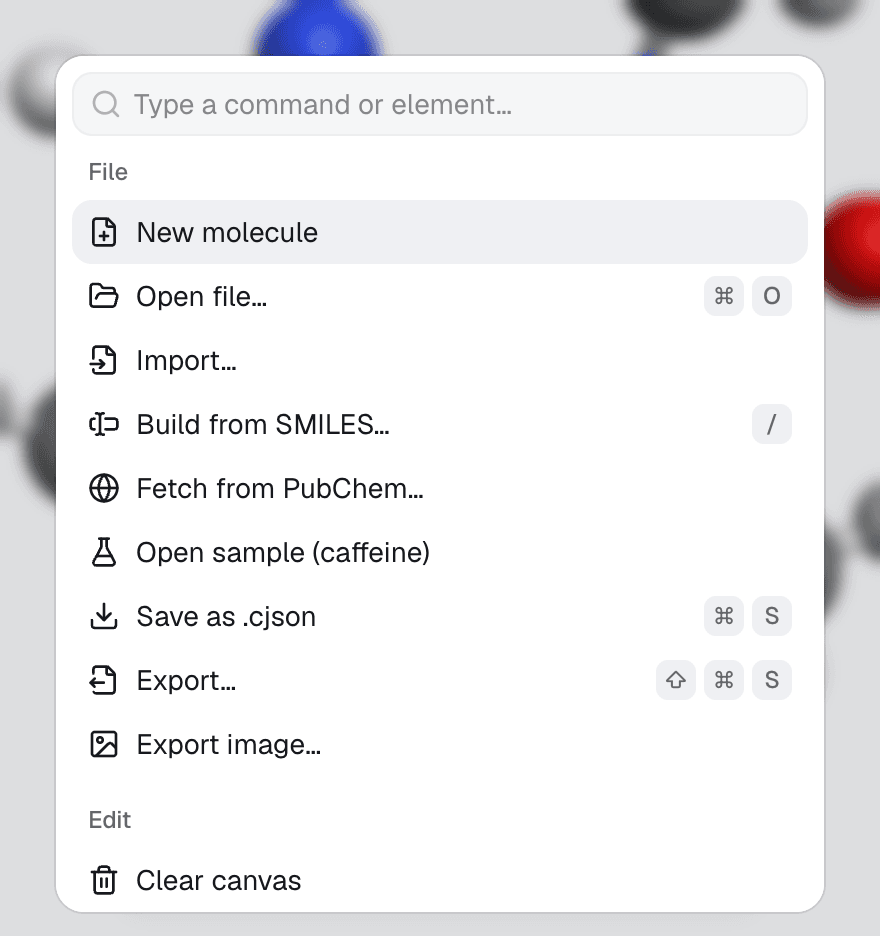
Press ⌘K (Ctrl+K on Windows and Linux) or use the command palette button in the top bar to search every action in the current workspace. Press ? to list the keyboard shortcuts. Tool tooltips show their shortcut too.
A short guided tour starts the first time you open each workspace on a wide screen. Close it at any time and it won't start again on its own. To replay it, choose Take the tour in the command palette or the More menu.
Build a reaction scheme
Switch to Reactions to arrange reactants and products, edit their structures, and add text above or below the arrow. Reaction sheets can be saved as editable files or exported as images. Follow the reaction editor guide.
Stereochem guides
Learn to draw molecules in 2D and 3D, build structures from SMILES, create reaction schemes, and import or export chemical files.
Build a 3D molecule from SMILES
Paste a SMILES string into Stereochem to build, inspect, and export a 3D molecular structure, and learn what to verify in the result.